

Wizard: Multi-Step Wizard Forms
Statamic Easy Forms includes a built-in "Wizard Mode" that automatically converts your form into a multi-step experience based on your form's blueprint sections. Because a demo equals a thousand documentation pages, check it yourself on the demo site.
Features
- Automatic Steps: Uses your form's "Sections" to define steps.
- Step-by-Step Validation: Validates fields in the current step before allowing the user to proceed (requires Precognition).
- Progress Tracking: Visual progress bar showing completion status.
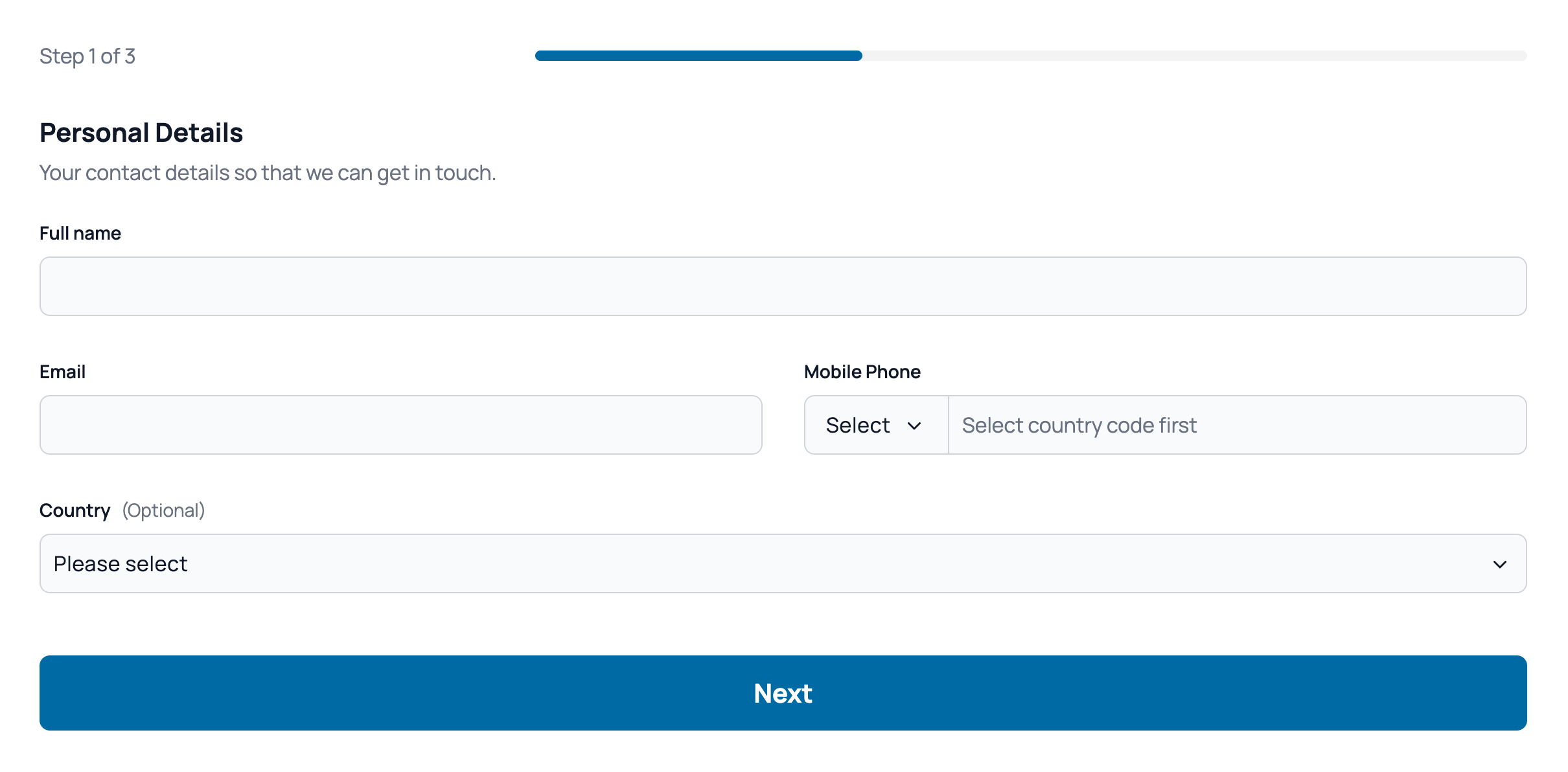
How to Use
1. Configure Your Form Blueprint
In the Statamic Control Panel, go to your Form's Blueprint. Organize your fields into Sections.
- Each Section in the blueprint becomes a Step in the wizard.
- The Section's "Display Name" is used as the Step title.
- The Section's "Instructions" are displayed below the title.
2. Enable Wizard Mode in Antlers
Add the wizard="true" parameter to your tag.
We strongly recommend enabling Laravel Precognition (precognition="true") when using Wizard Mode. This allows the form to validate the current step's fields on the server before moving to the next step.
{{ easyform handle="contact" wizard="true" precognition="true" }}Enabling Precognition
Make sure to check the relevant page in the docs to enable Laravel Precognition since some extra steps are required for it to work correctly.
Validation Behavior
With Precognition (Recommended)
When a user clicks "Next":
- The current step's data is sent to the server for validation.
- If there are errors, they are displayed immediately, and the form does not proceed to the next step.
- If valid, the wizard proceeds to the next step.
Without Precognition
When a user clicks "Next":
- The wizard proceeds to the next step immediately (client-side only).
- Full validation happens only on the final, "Submit" step.
- If there are errors in previous steps, the wizard will automatically jump back to the first step with an error and the user needs to redo all next steps.